TABLE OF CONTENTS
Leo, the Testlio chatbot, is here to assist you during your testing sessions, helping you get information out of various sources. It generates helpful answers based on information in the workspace you are testing in. Please note that Leo is currently in beta, so changes may come as time passes and it is not available in all workspaces.
Where Leo Gets Answers
Leo is designed to pull information from these main sources:
The Testlio Help Center: For general information that applies to all workspaces.
Workspace-Specific Articles: Each workspace has its own collection of help articles that contains information and instructions specific to that workspace.
Run instructions: All instructions related to the run for which you are completing a testing task.
Leo knows what workspace you are in when you ask questions and only gives you information that relates to that workspace. All answers from Leo contain links to the pages the Leo used to generate an answer, so you can always verify that the information is correct and find additional details you might need.
As Leo grows, more sources will be added to ensure you can get relevant answers to your questions.
Access Leo
When you initiate a testing task in an eligible workspace and click Go testing →, you see a button labeled ✨ Get help from Leo AI.
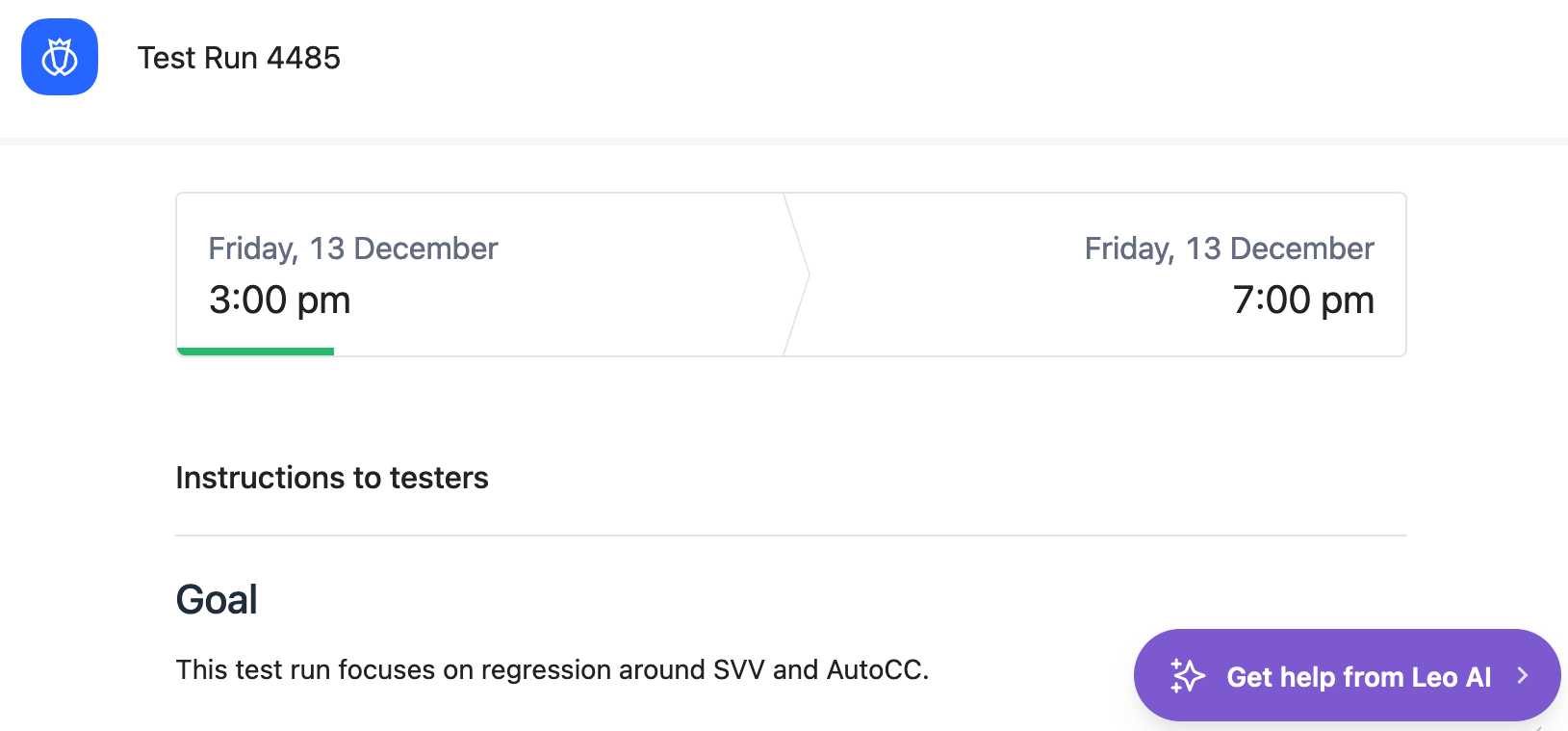
When you click the button, you see a chat window introducing Leo and giving you a place to ask any question.
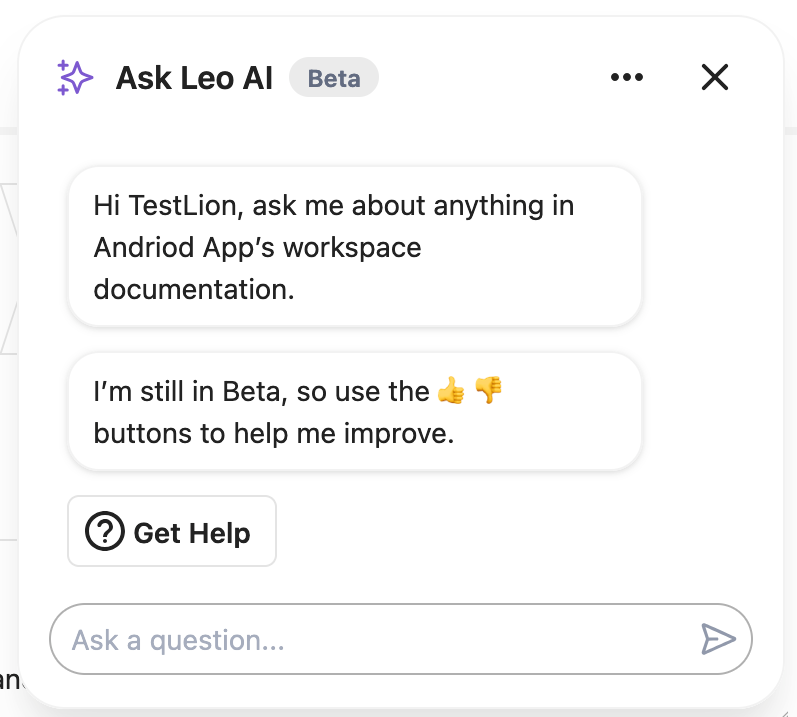
Ask Questions
You can proceed by asking Leo specific questions related to the workspace you are currently in. Leo is designed to provide relevant and accurate information.
If you are still uncertain about the answer, click 5 pages found (the exact number depends on the question) to see the references from which Leo got the answer. Click any article to see it in full with more context and detailed information.
Give Feedback
Leo's learning process is fueled by your feedback. After receiving a response, please use the ? (thumbs up) button if the answer was helpful and accurate. If the answer was not satisfactory or incomplete, mark it with a ? (thumbs down).
Leo will evolve over time based on the feedback received, ensuring improved response times and more accurate answers as we progress.
Thank you for being a part of this exciting beta release! Your engagement and feedback are crucial in shaping Leo into the first line response for all your testing queries.
#TestlioBot
Was this article helpful?
That’s Great!
Thank you for your feedback
Sorry! We couldn't be helpful
Thank you for your feedback
Feedback sent
We appreciate your effort and will try to fix the article