Get all necessary information about your TV in the TV Settings > System > About > press the right arrow key
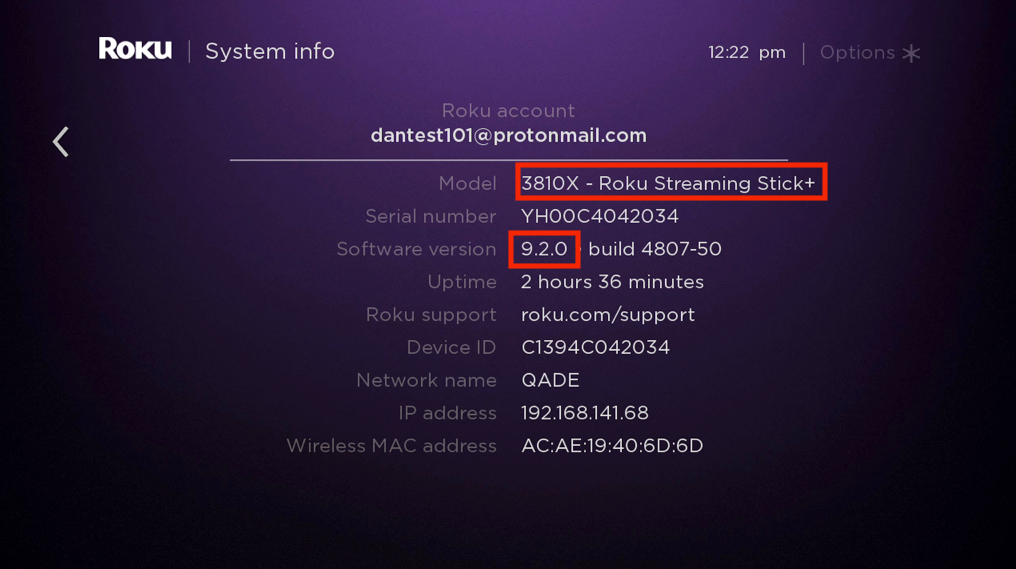
Then add your Roku TV to device list.
Click + Add.
Click Smart TV.
For the model, enter the TV name (for example, Roku Streaming Stick+).
For the OS, enter the version number from the TV settings (such as Roku OS 14.0).
Add a Missing Device
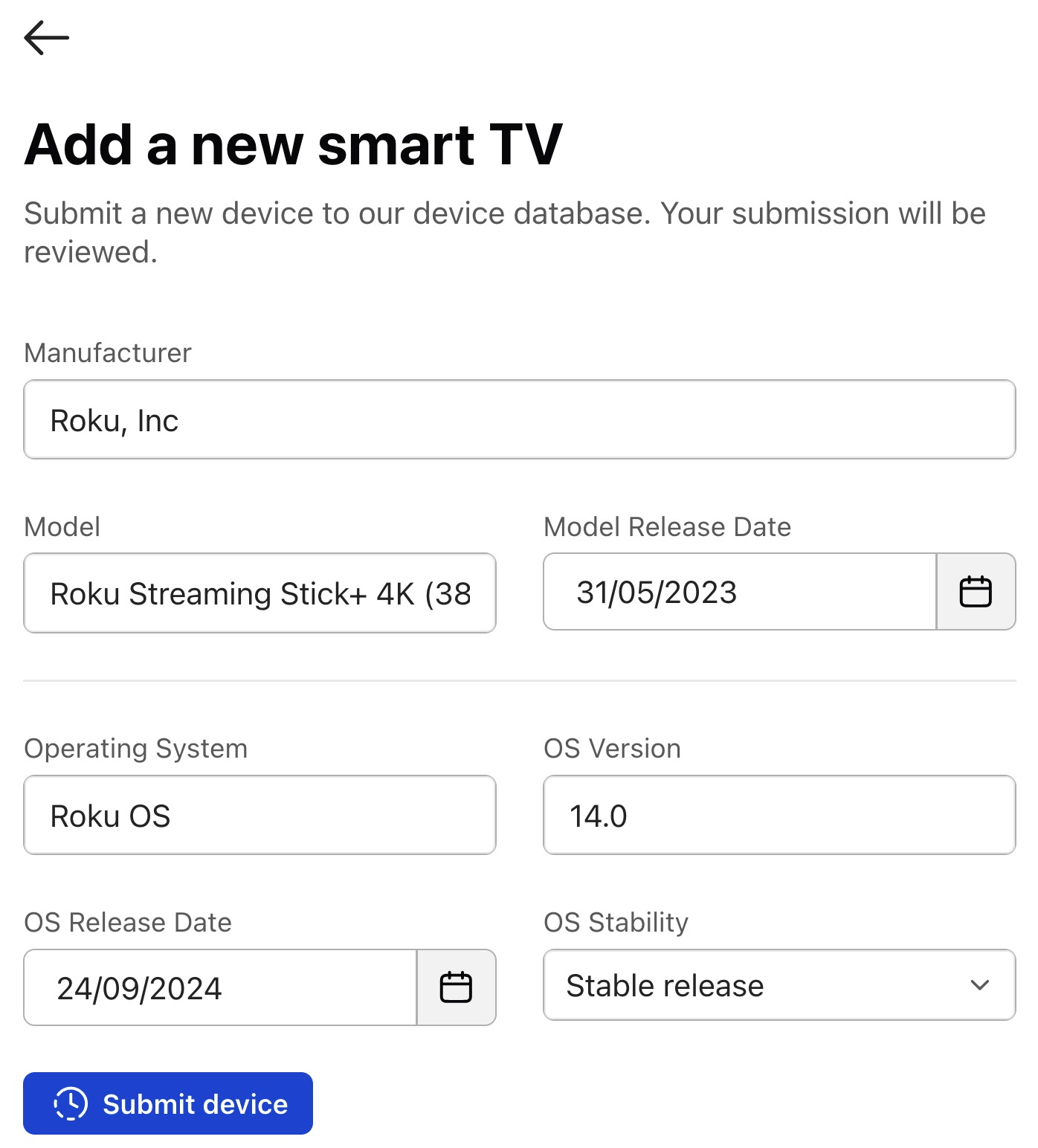
If your model or OS version is not found, click + Add a new model or + Add a new OS version. Then fill in the necessary information:
Manufacturer: Roku, Inc
Model: Find in your TV settings, for example: 3821X
Release Date: Search the web for your model release date
Operating System: Roku OS
OS version: Find in your TV settings, for example: 14
OS Release Date: See the release notes for Roku OS
Example Submission
Please note: Your Roku will generally update to the newest OS version automatically at regular intervals, please verify the current OS version before accepting any tasks.
#TestlioBot
Was this article helpful?
That’s Great!
Thank you for your feedback
Sorry! We couldn't be helpful
Thank you for your feedback
Feedback sent
We appreciate your effort and will try to fix the article