This article will guide you through the process of capturing logs on macOS devices, such as MacBook, iMac, Mac mini, etc.
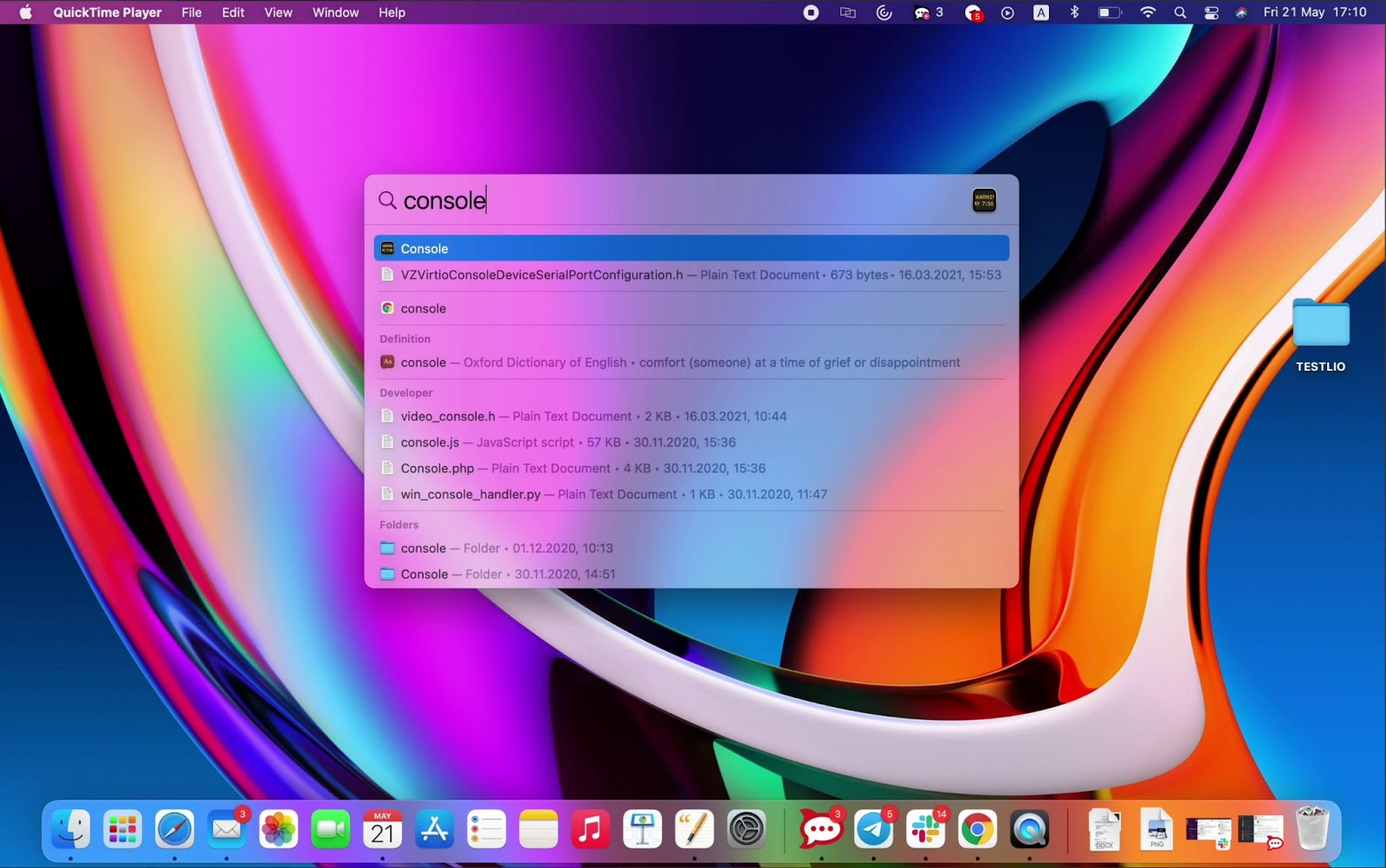
Step 1. Go to the spotlight search > Type ‘Console’
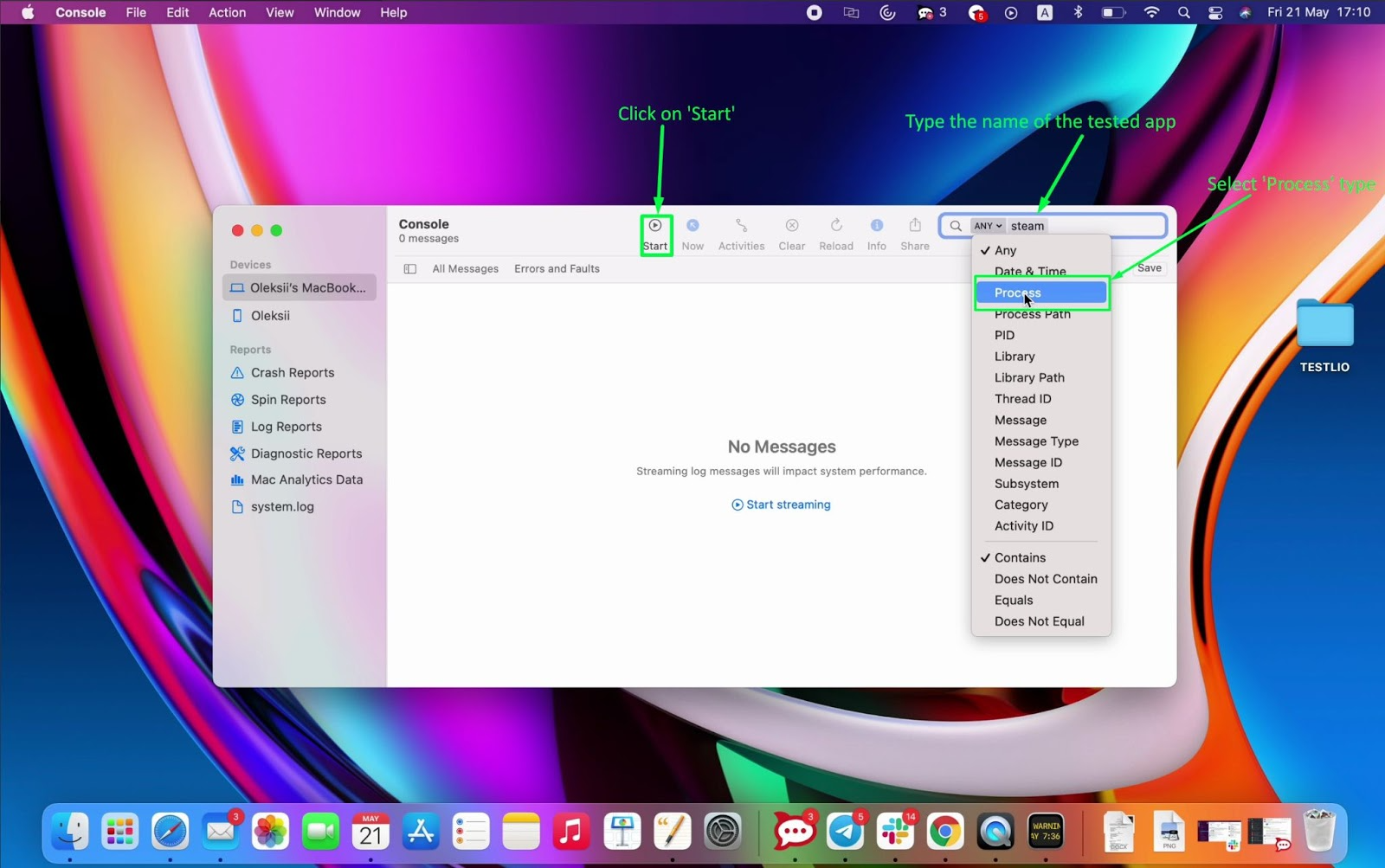
Step 2. Type the name of the tested app, change type from ‘Any’ to ‘Process’
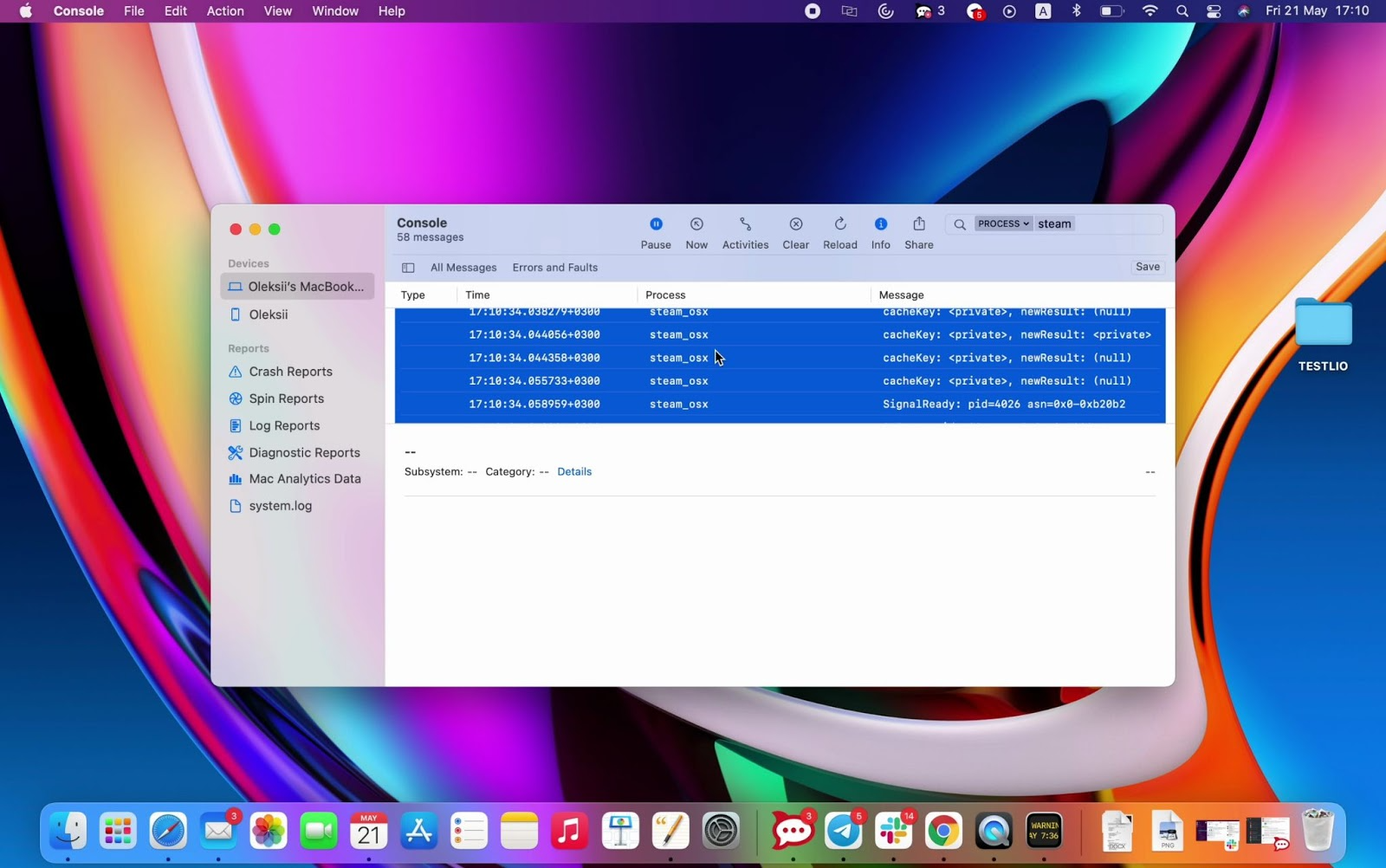
Step 3. Start the tested application. Press ‘Start’ to start recording logs when you have encountered a bug.
Step 4. Go back to the Console app > Press command + A to select all the recent logs > Press command + C to copy them
Step 5. Open spotlight search > TextEdit > Create new text file
Step 6. Paste the logs you have copied to the text file > Save the text file with the logs
Step 7. Attach the logs text file to your bug
#TestlioBot
Was this article helpful?
That’s Great!
Thank you for your feedback
Sorry! We couldn't be helpful
Thank you for your feedback
Feedback sent
We appreciate your effort and will try to fix the article