TABLE OF CONTENTS
- Tools needed to be installed on the machine
- Setting up the framework
- Understanding framework components
- Getting locators for app
- Writing Screen classes
- Writing Test Classes
- Test Case Execution
The Structure follows the MVVM pattern, where we have four layers in the framework
Helpers
Screens
Tests
Tools needed to be installed on the machine
XCode
Xcode command line tools
Setting up the framework
Clone the repo
Checkout XCUITest branch
Open the project in Xcode
Xcode will take some time to install all dependencies
Understanding framework components
ToDoListUITest group contains our base framework
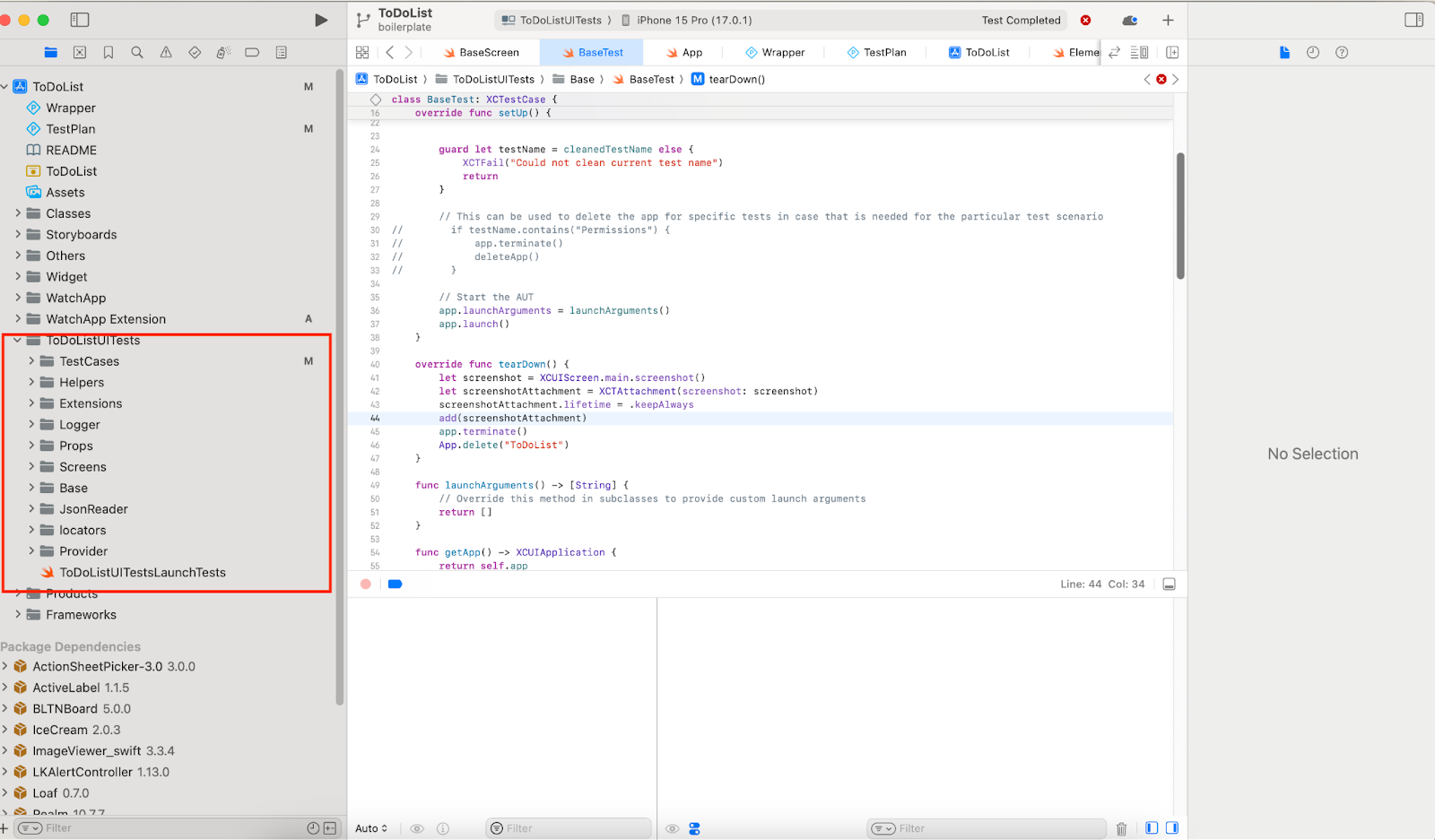
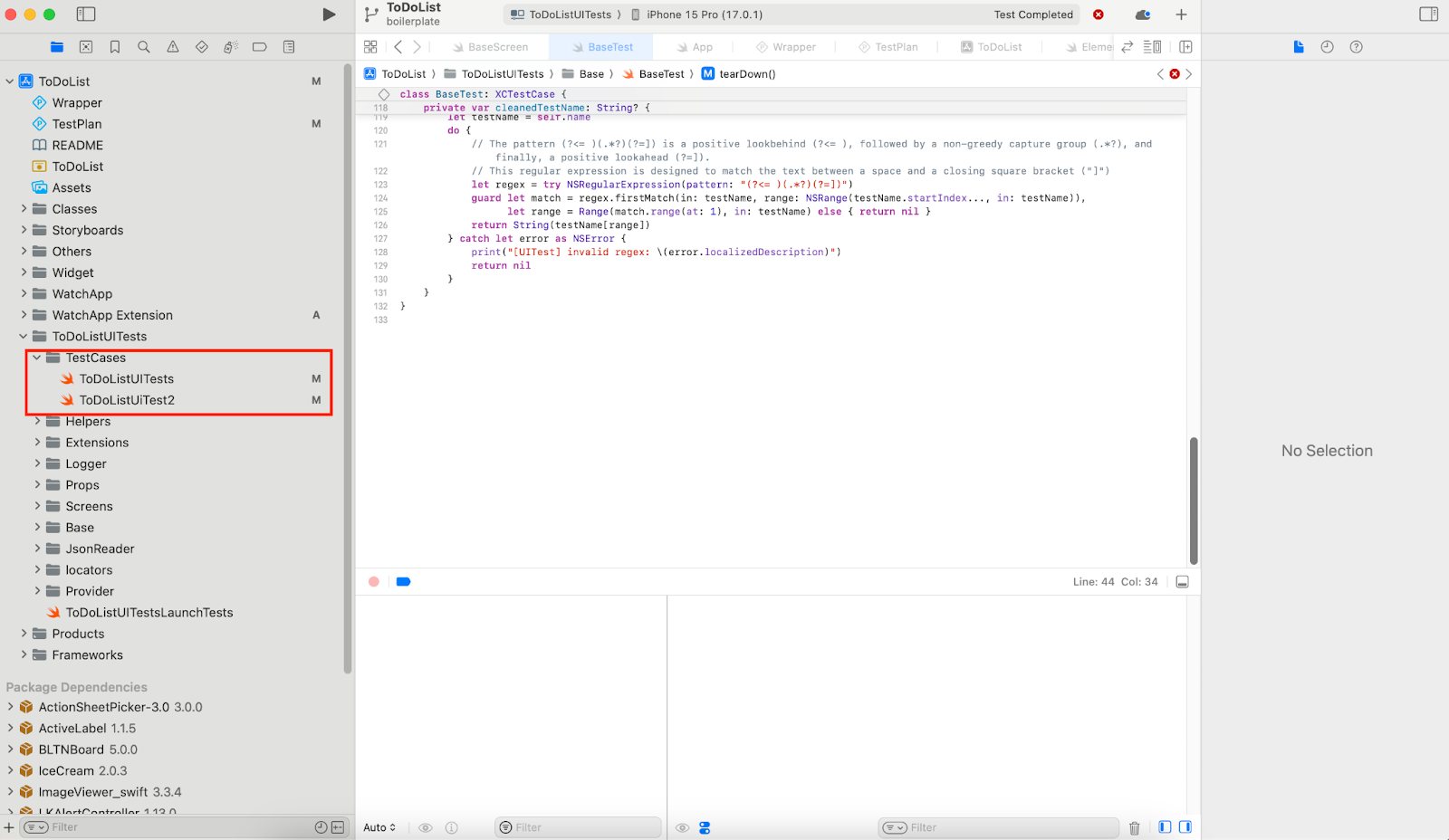
TestCases group will contains all Test class and each test class inherits the BaseTest class, which having hooks to manage the state
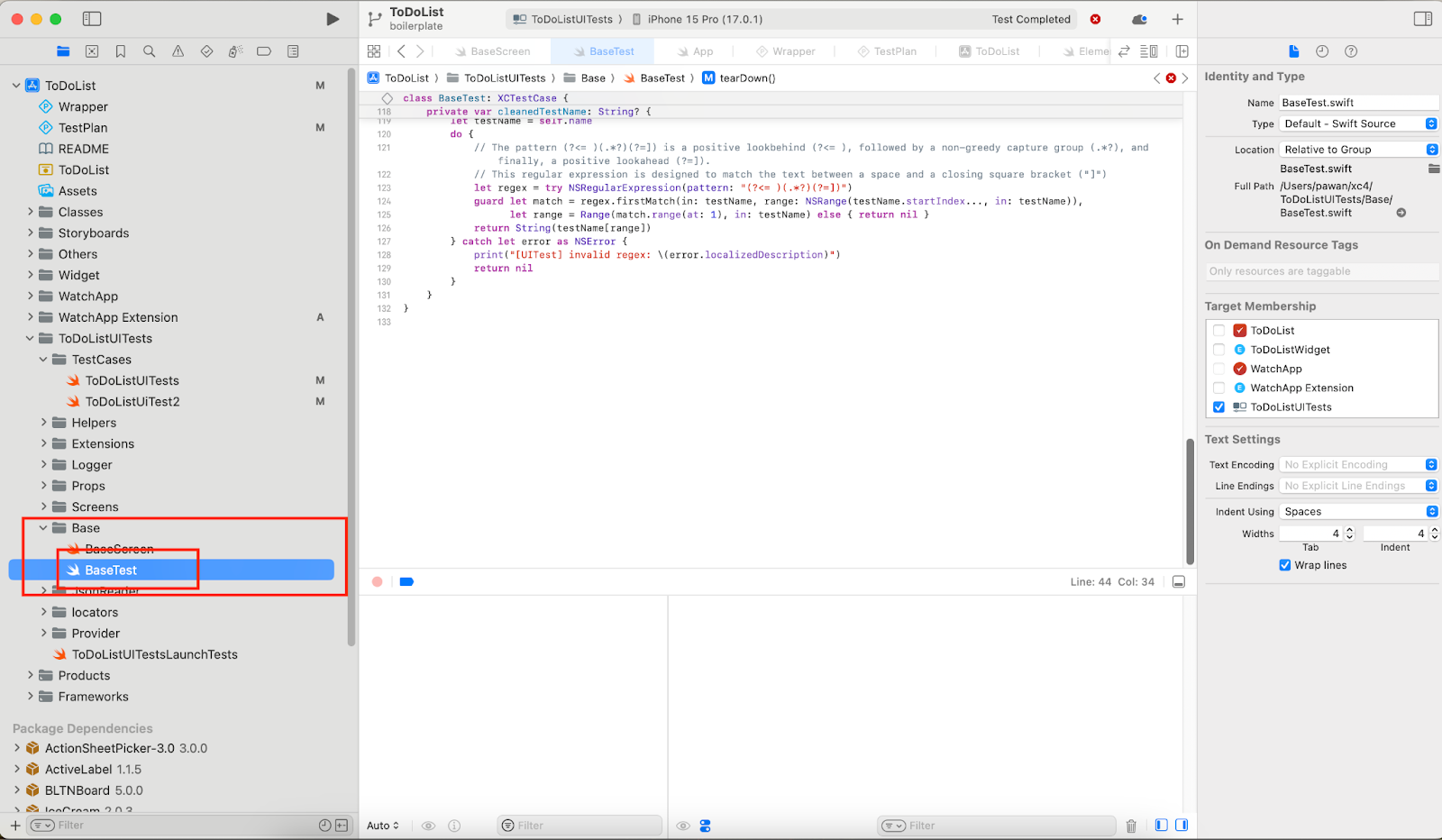
BaseTest class is in Base group
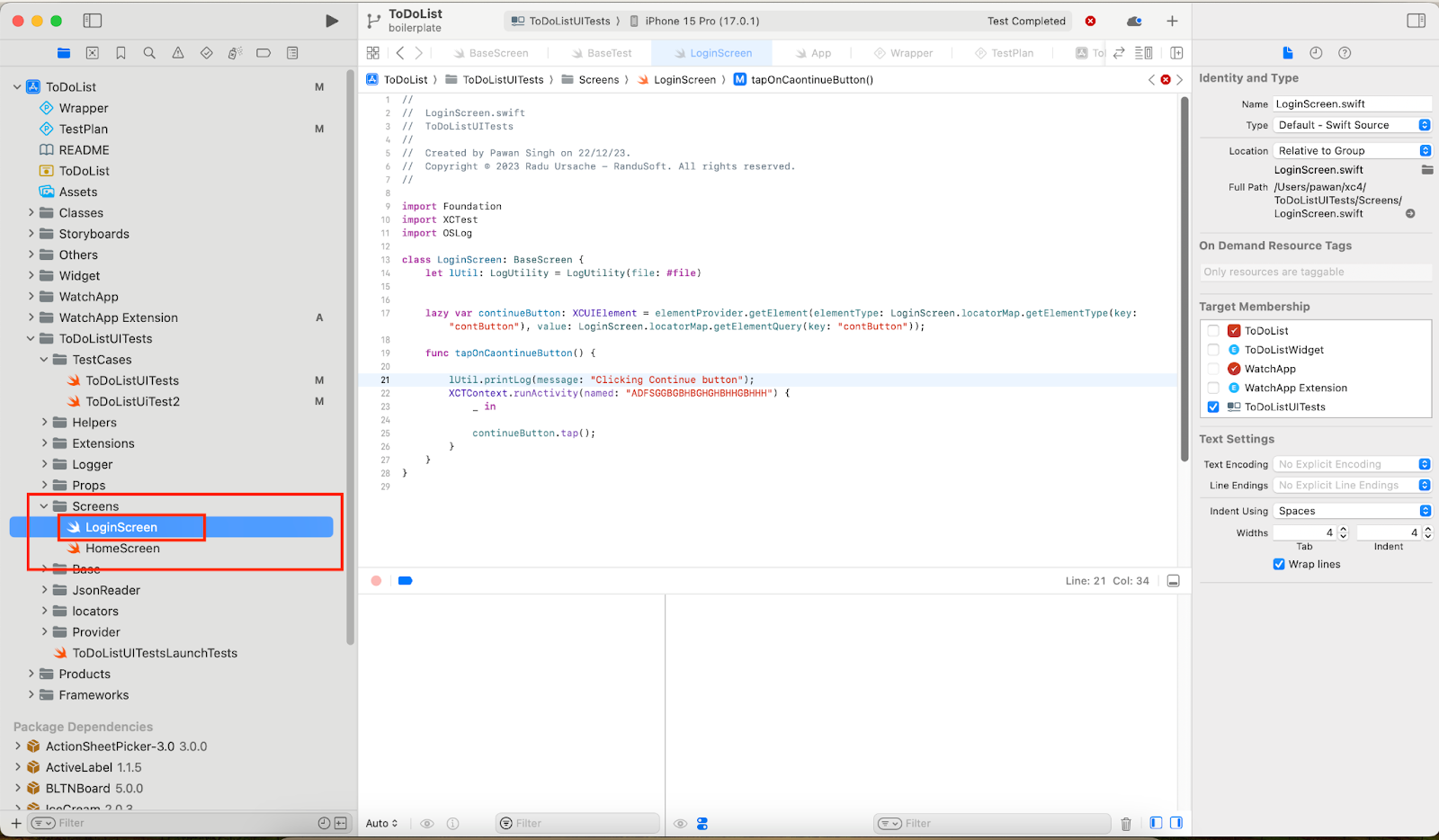
`Screens` group contains all screen classed which is mapped individual screen on the app, each screen class inherit BaseScreen class, which provide access for screen related common methods
BaseScreen is present in Base group
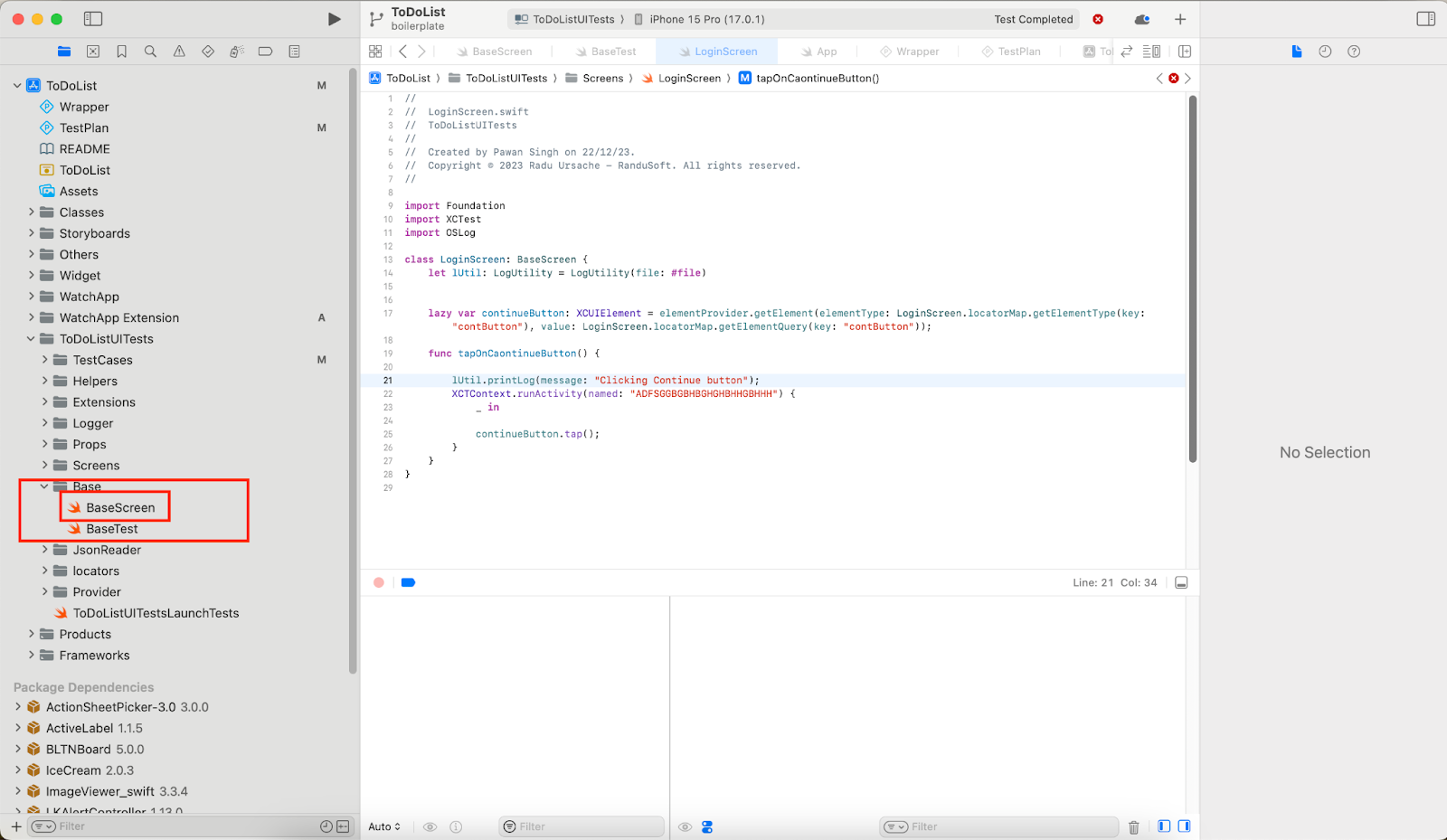
We have different `Helpers` classes in `Helpers` group for each specific type of action given below
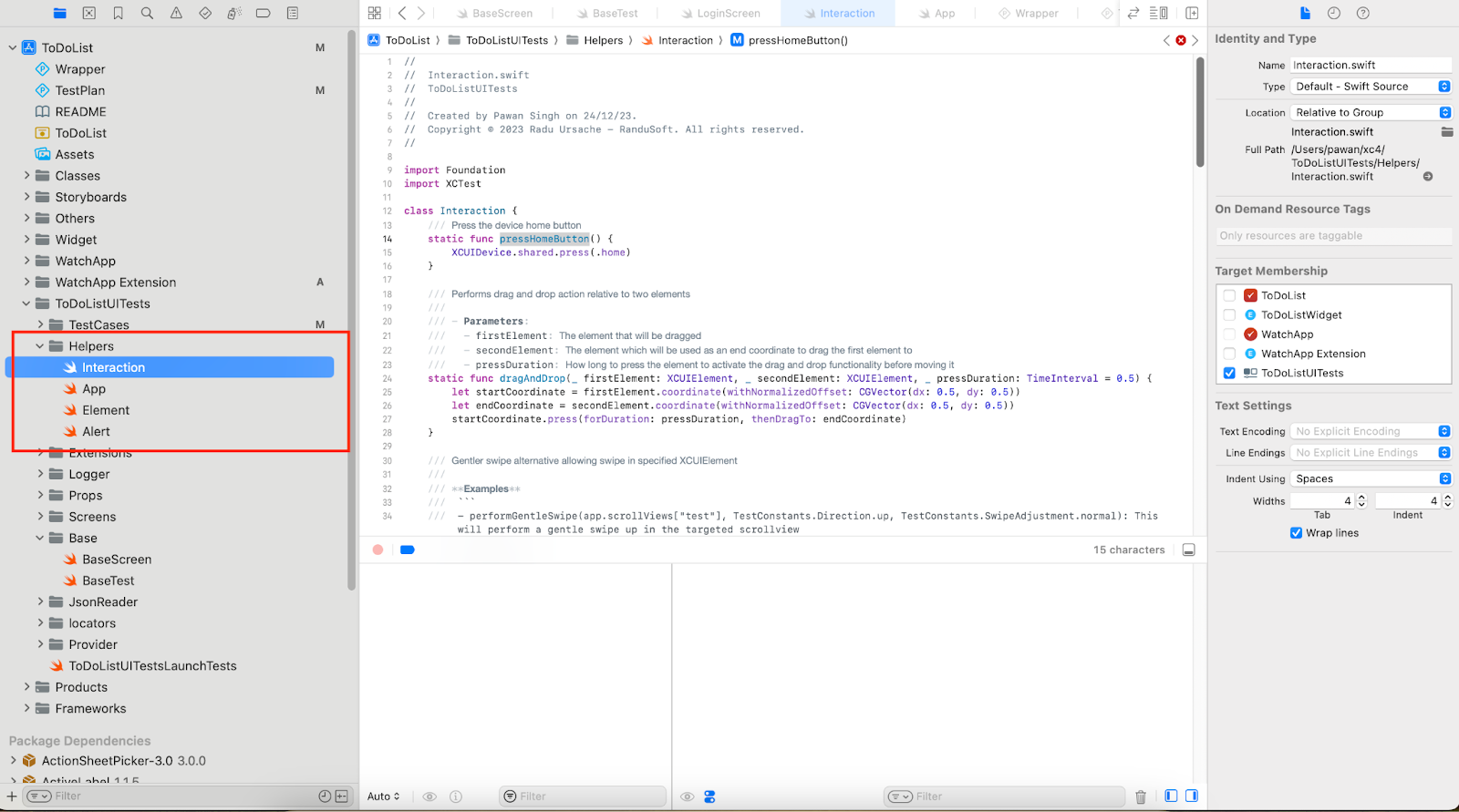
We have `ActionHelper` class having methods used device related actions
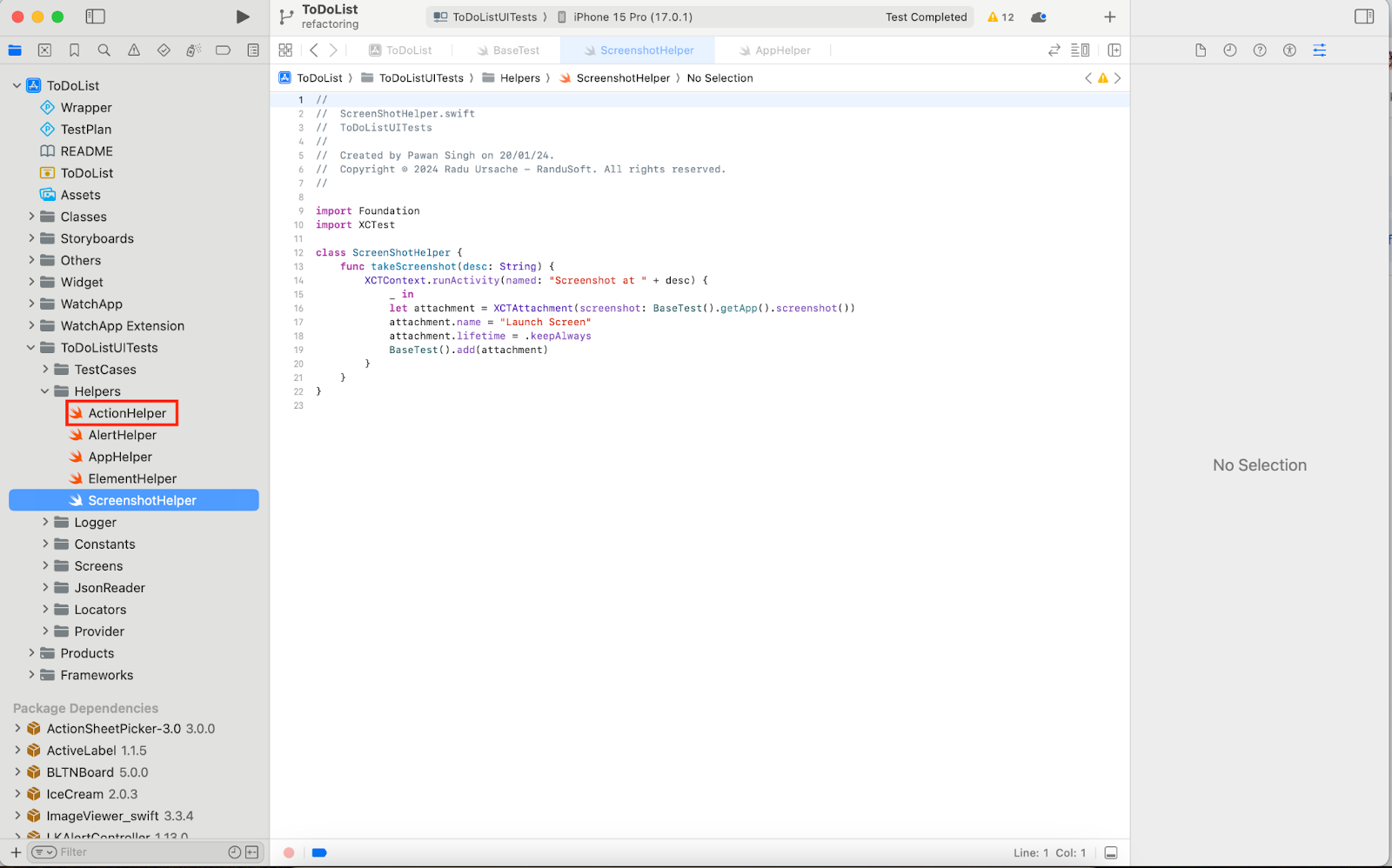
There is `AppHelper` class having methods to deal with app
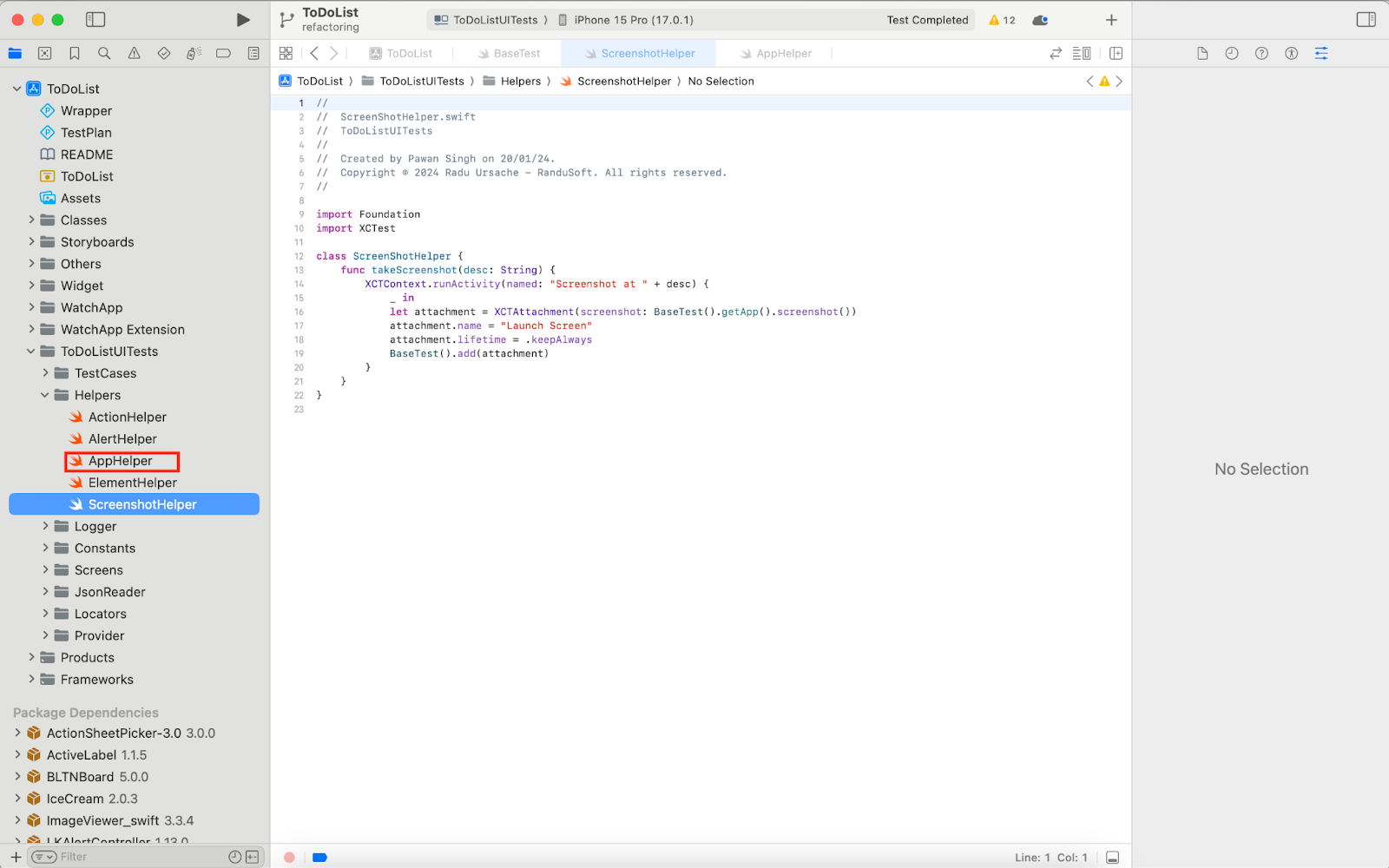
ElementHelper class is having methods meant to work on elements
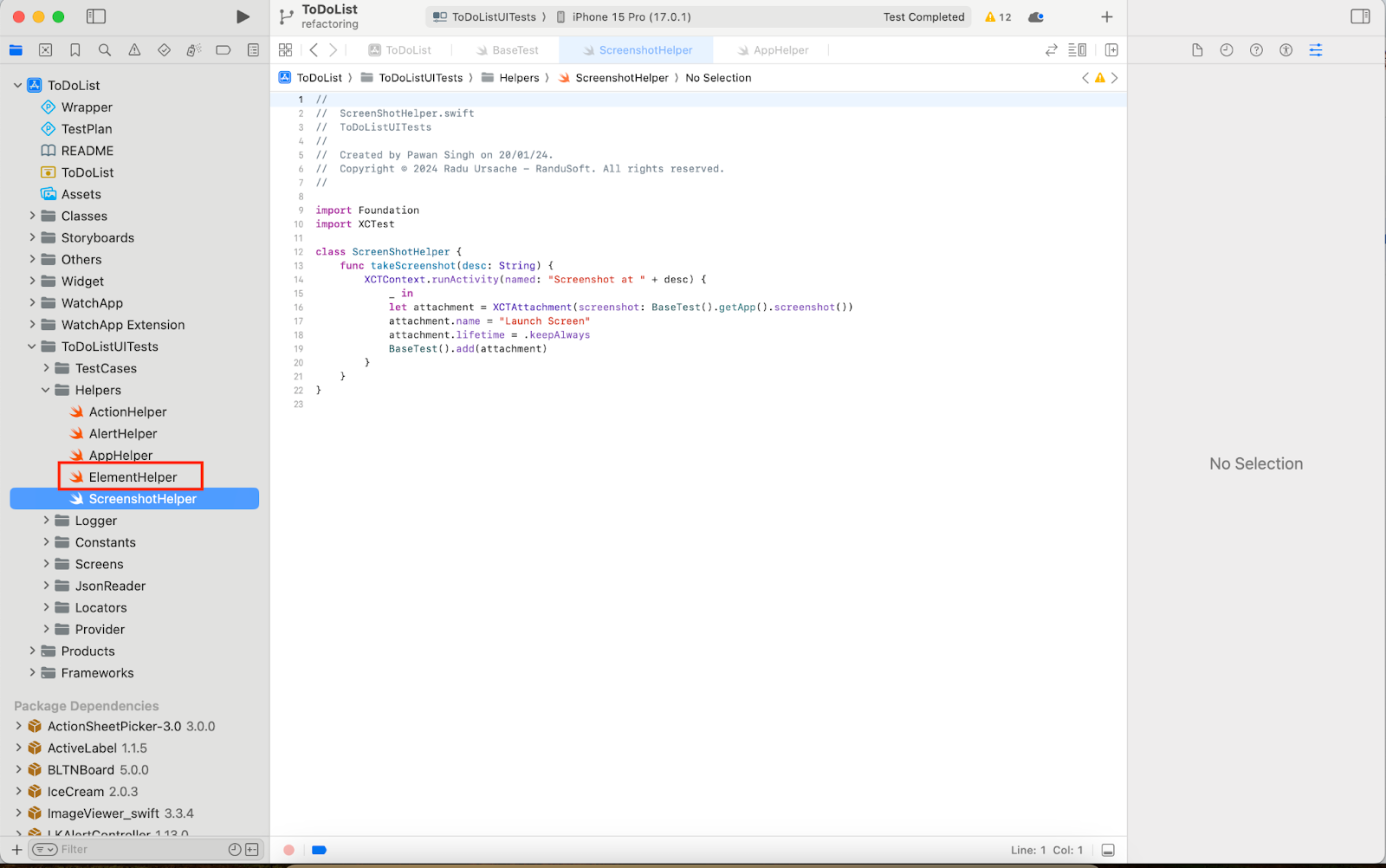
`AlertHelper` class contains methods for working with Alerts
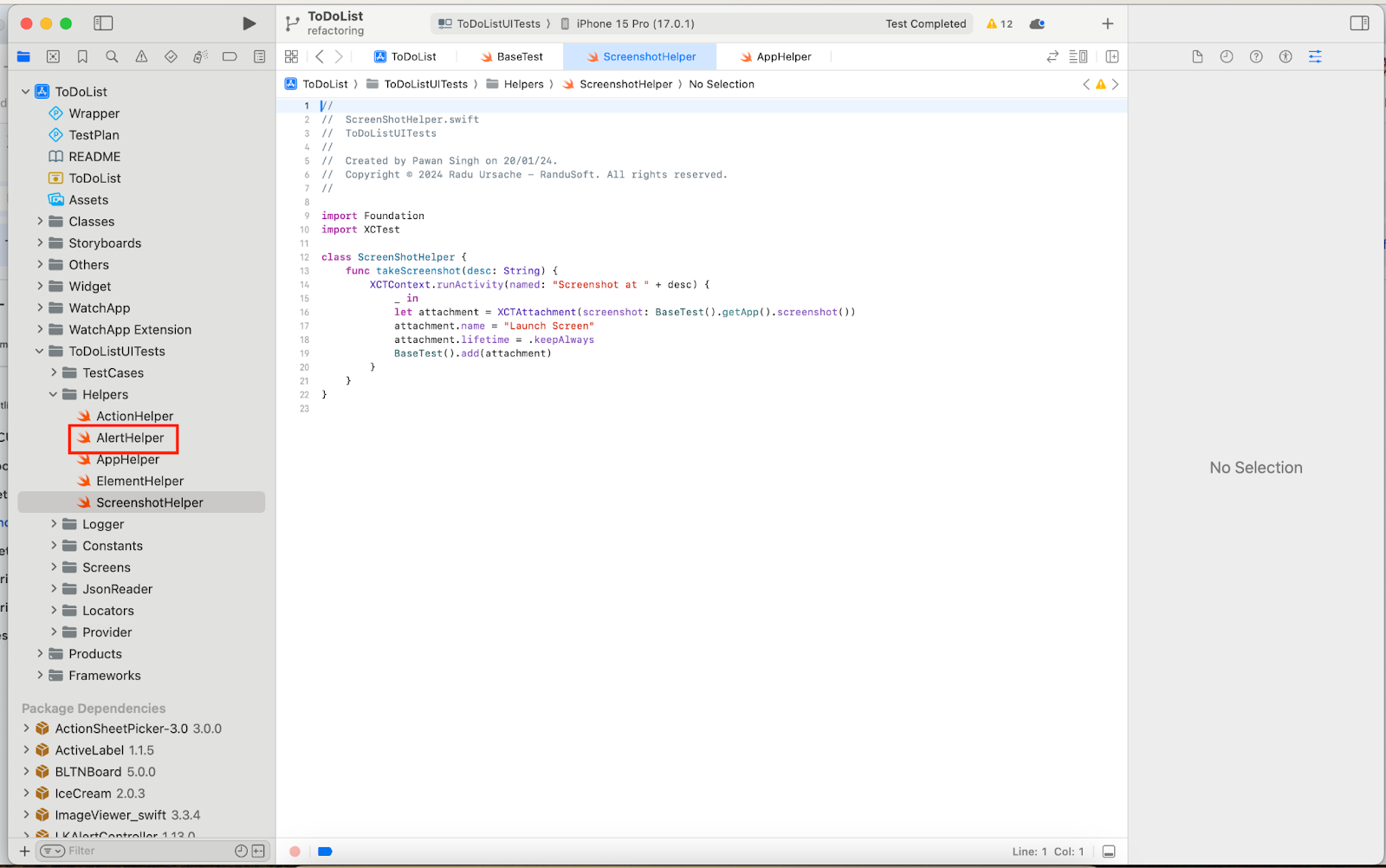
`ScreenShotHelper` has method to take screenshot
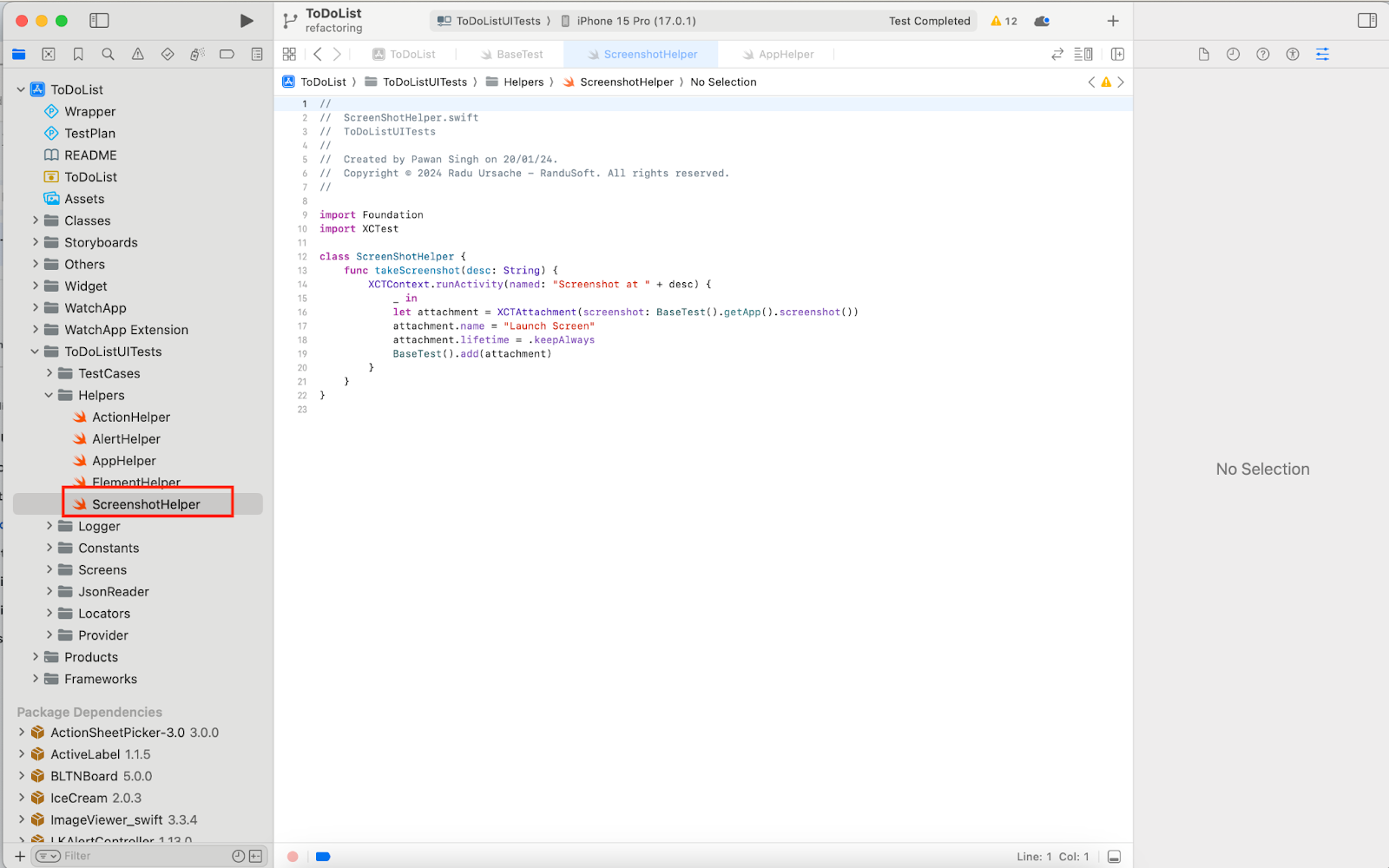
Then we have `Logger` group containing `LogInfo` class to deal with logging
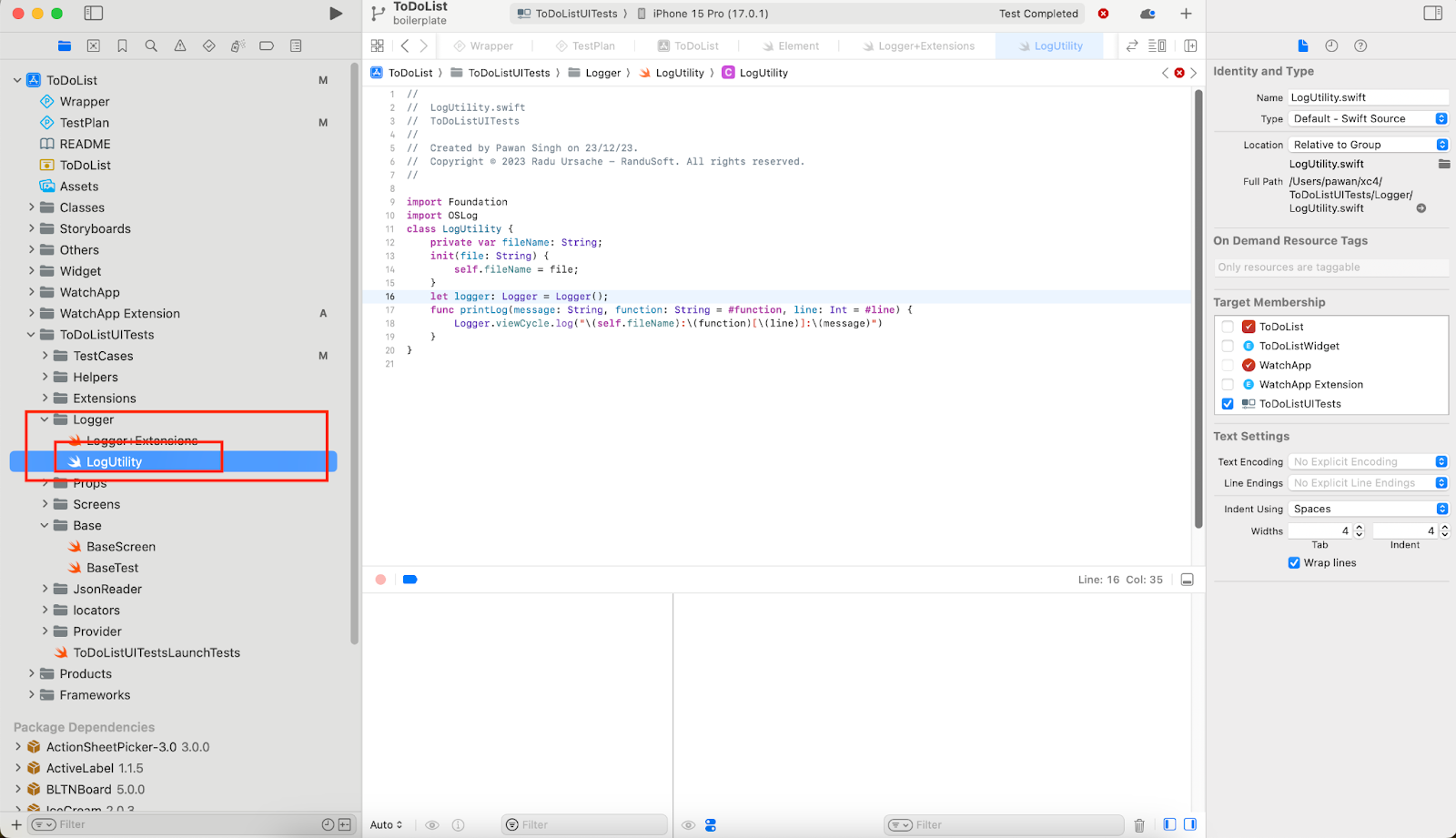
Locators groups contains locators for different screen as json files
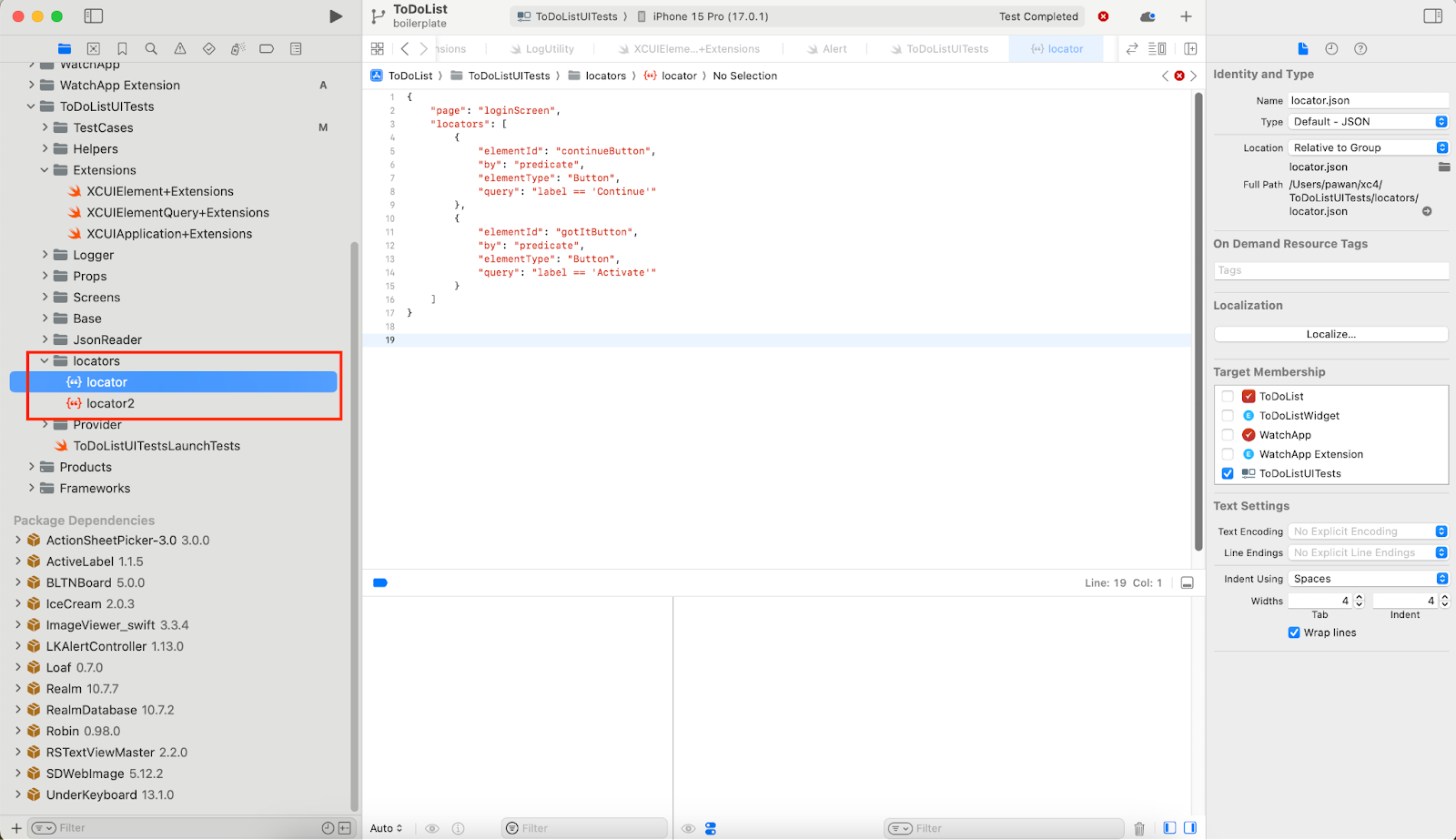
Getting locators for app
Though Xcode has an Accessibility inspector which can be opened via XCode > Open developer tools > Accessibility Inspector, but it is annoying and not accurate. So, we will follow different method here is a bit manual, mentioned below
Setup a debug point in a test just after launch
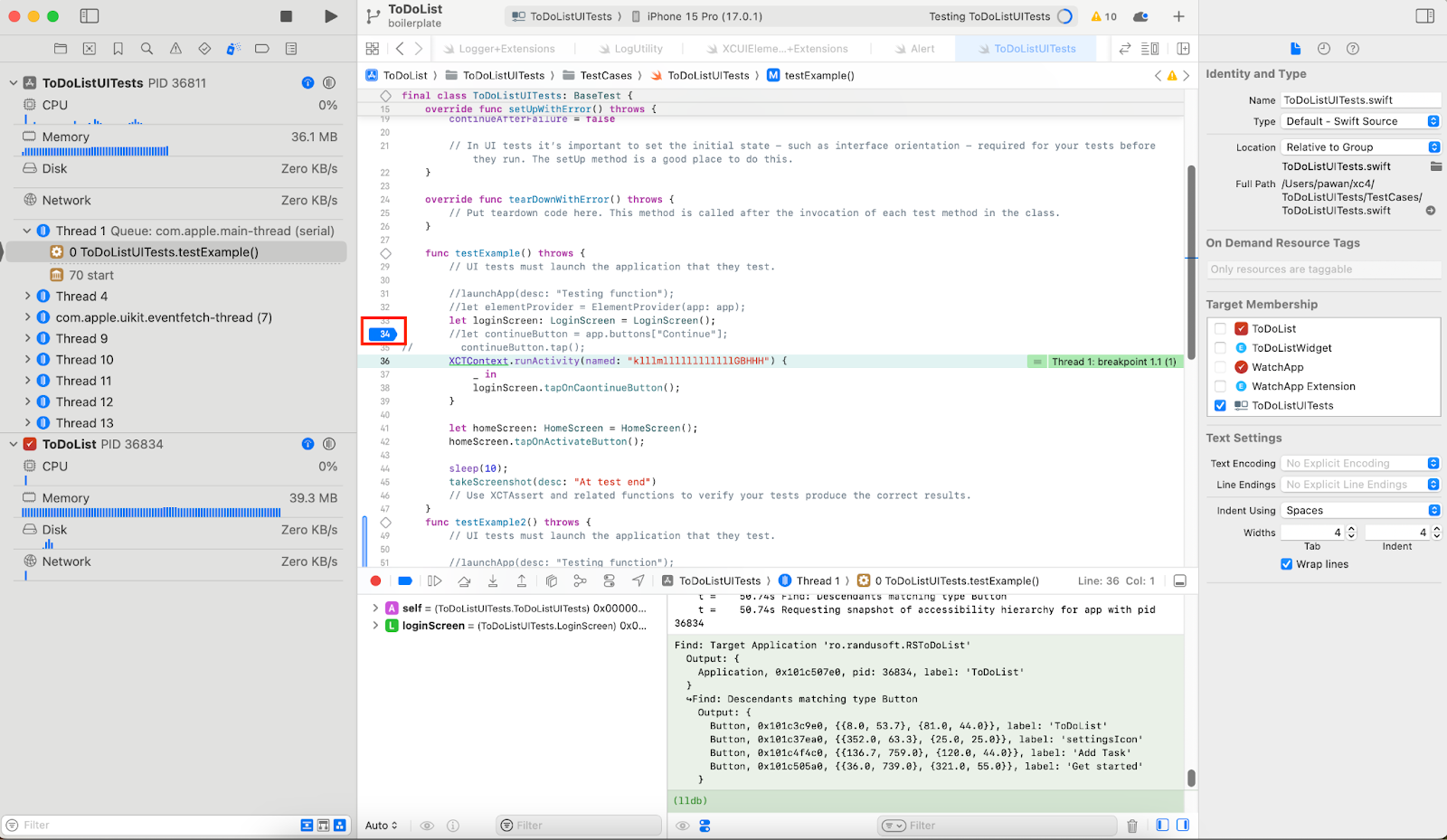
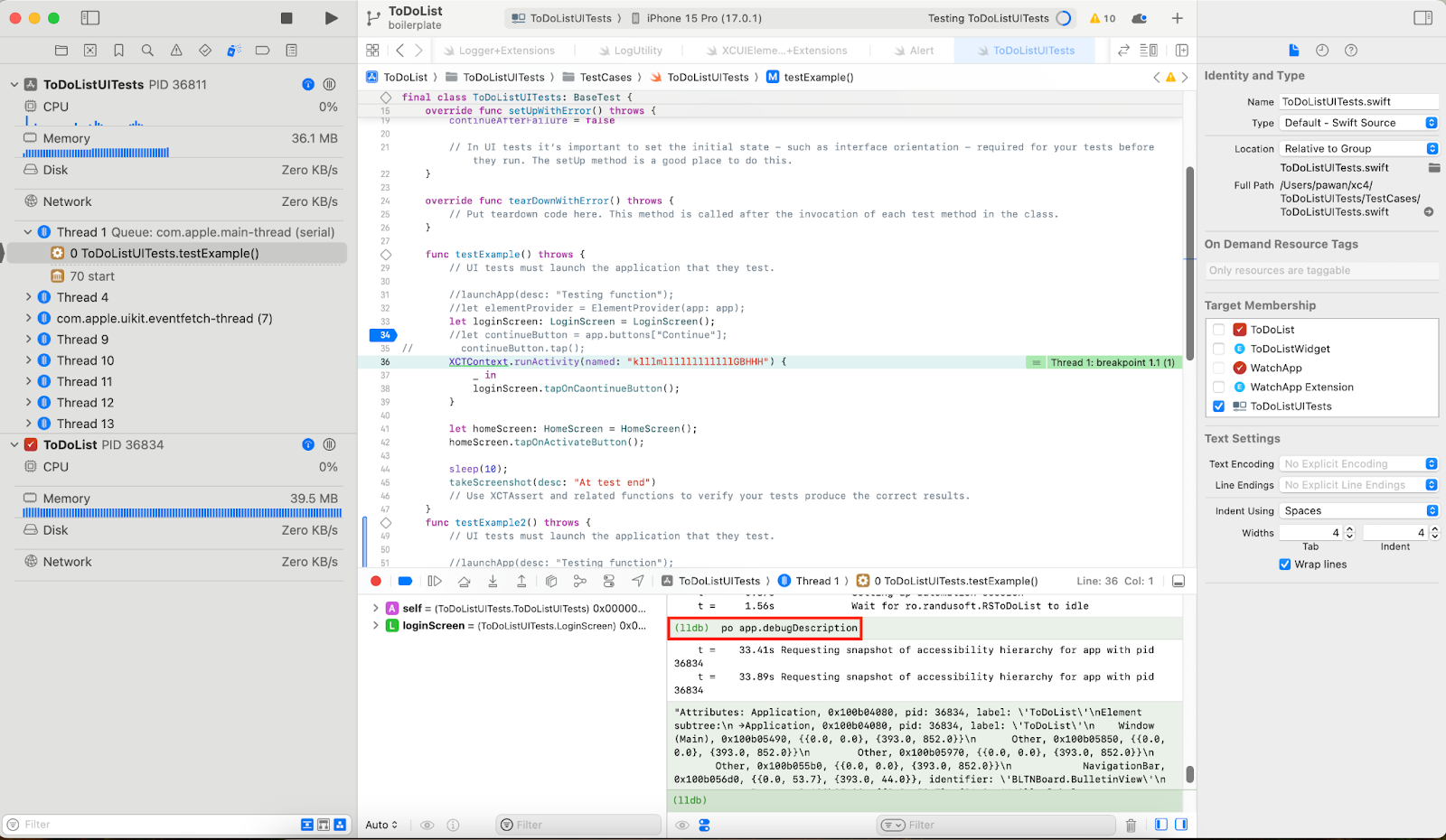
From Product menu run `Test`, at debug point shell interface appears, now type the command `po app.debugDescription` and hit enter, page element hierarchy be print on console
Suppose you want to print only, button elements on the current screen, then execute `po app.buttons`, similarly specific elements can be found
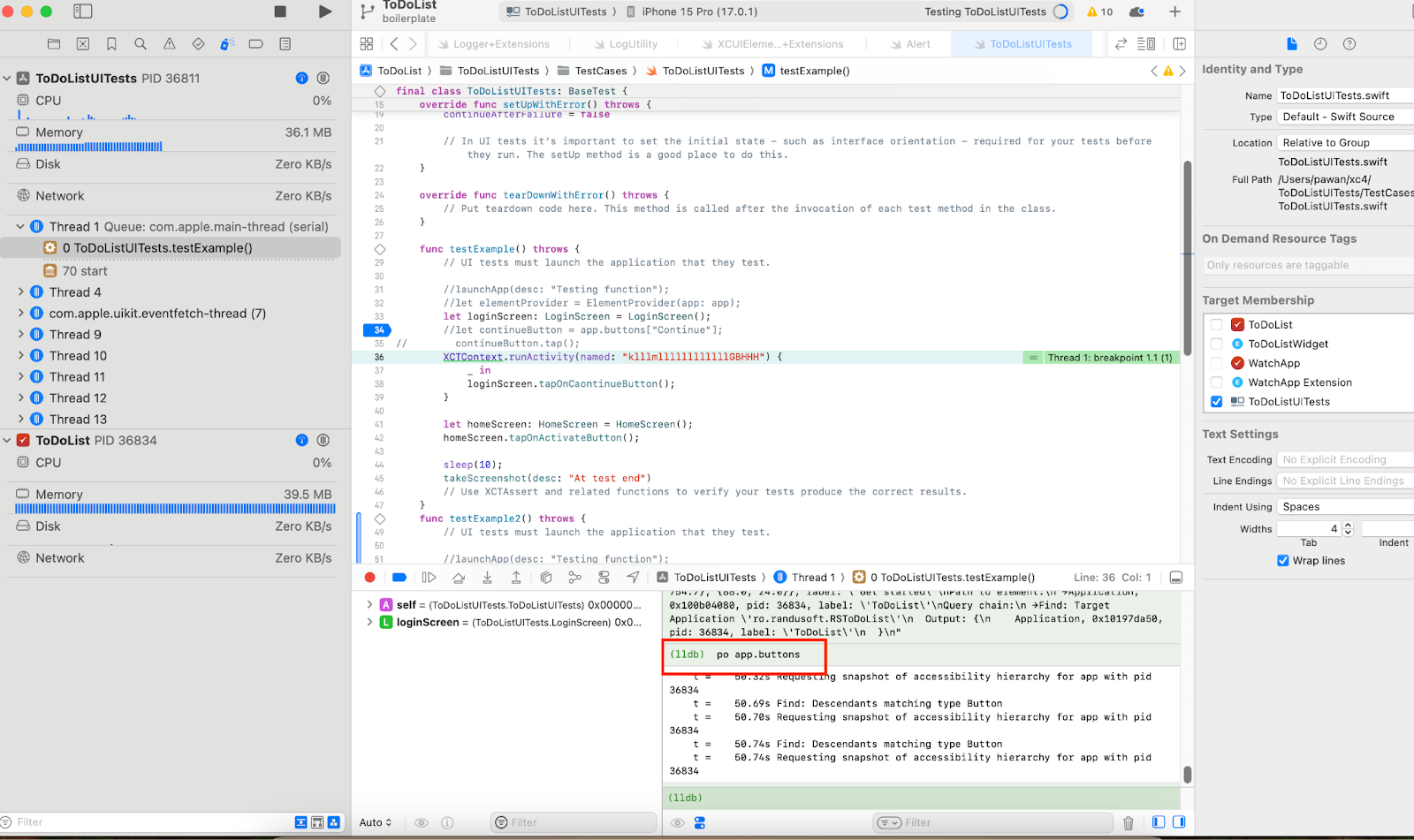
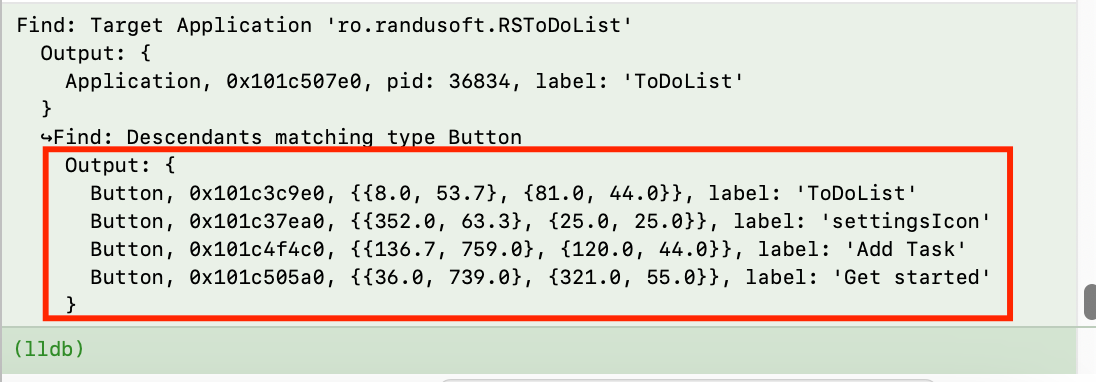
Similarly you element with attribute and attribute value
Now, we are using predicate queries for getting the element, as predicate queries are most fastest and accurate way to locate the element
Each screen is having its own locator<Screen-Name>.json file in Locators group for example
 {
"page": "loginScreen",
"locators": [
{
"elementId": "continueButton",
"by": "predicate",
"elementType": "Button",
"query": "label == 'Continue'"
},
{
"elementId": "gotItButton",
"by": "predicate",
"elementType": "Button",
"query": "label == 'Activate'"
}
]
}
Where `page` key having screen name as value while `locators` contains all locators
Each locators will be like in the format
 {
"elementId": "gotItButton",
"by": "predicate",
"elementType": "Button",
"query": "label == 'Activate'"
 }
Where query is predicate string
Writing Screen classes
Each screen on app will have a corresponding screen class in project, which will inherit base class
Locators will be defined like this
lazy var continueButton: XCUIElement = elementProvider.getElement(elementType: LoginScreen.locatorMap.getElementType(key: "contButton"), value: LoginScreen.locatorMap.getElementQuery(key: "contButton"));
Where `locatorMap` map will be having element type and predicate string (as mentioned in json file)Then, we will have method for operation on that element
func tapOnCaontinueButton() {
lUtil.printLog(message: "Clicking Continue button");
XCTContext.runActivity(named: "Clicking continue button") {
 _ in
continueButton.tap();
 }
}
XCTContext.runActivity method creates a granular log in xctest result
Writing Test Classes
Test class are consists of test methods, which can be sequentially executed, executed independently, based on before and after hooks logic
func testExample2() throws {
let loginScreen: LoginScreen = LoginScreen();
XCTContext.runActivity(named: "klllmllllllllllllGBHHH") {
_ in
loginScreen.tapOnCaontinueButton();
}
}
In test class we need to initialize the screen classes, execute the methods and make assertions
Test Case Execution
First way is to via IDE
First we need to select Target as ToDoListUITests, then simulator or physical from adjacent dropdown
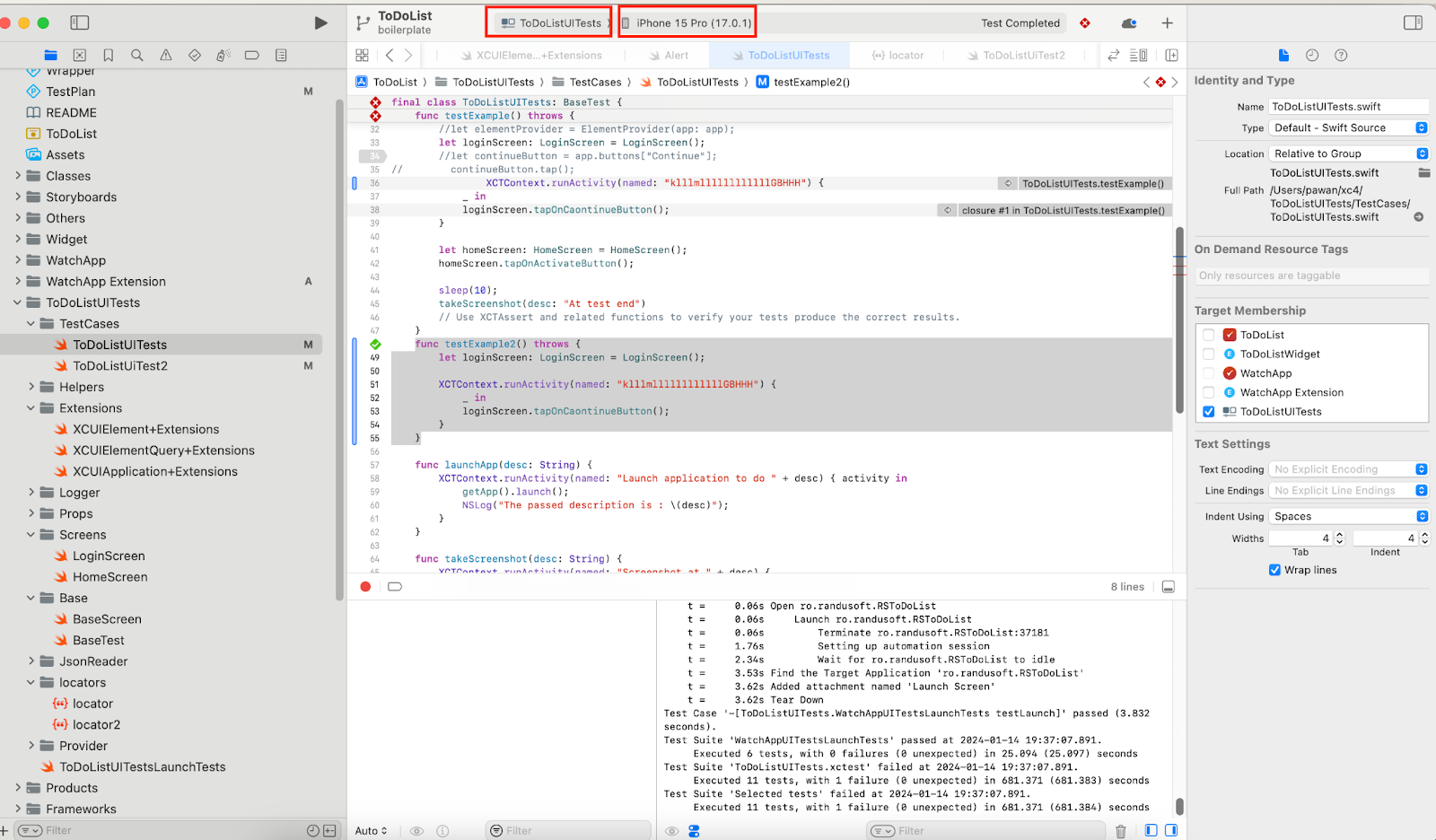
Then, from product menu, select Test menu item
Second method, we recommend is, via command line
To execute all test in ToDoListUITest scheme, run command
xcodebuild test -project ToDoList.xcodeproj -scheme ToDoListUITests -destination 'platform=iOS Simulator,name=iPhone 15'
To run specific test class, run command
xcodebuild test -project ToDoList.xcodeproj -scheme ToDoListUITests -destination 'platform=iOS Simulator,name=iPhone 15' -only-testing:TargetName/TestClass
For example:
xcodebuild test -project ToDoList.xcodeproj -scheme ToDoListUITests -destination 'platform=iOS Simulator,name=iPhone 15' -only-testing:ToDoListUITests/ToDoListUITests
To run specific test method in class
xcodebuild test -project ToDoList.xcodeproj -scheme ToDoListUITests -destination 'platform=iOS Simulator,name=iPhone 15' -only-testing:TargetName/TestClass/TestMethod
For example:
xcodebuild test -project ToDoList.xcodeproj -scheme ToDoListUITests -destination 'platform=iOS Simulator,name=iPhone 15' -only-testing:ToDoListUITests/ToDoListUITests/TestExample
Was this article helpful?
That’s Great!
Thank you for your feedback
Sorry! We couldn't be helpful
Thank you for your feedback
Feedback sent
We appreciate your effort and will try to fix the article